Create Events
In COOLROOL, events are the central hub for scheduling and coordinating club activities. Whether it’s a game, practice, or competition, creating an event lets you invite participants, manage drivers, and organize carpools in one place. This guide walks through creating an event, adding participants, assigning drivers, and booking seats—ensuring everyone has a ride to and from each activity.
Typical Workflow
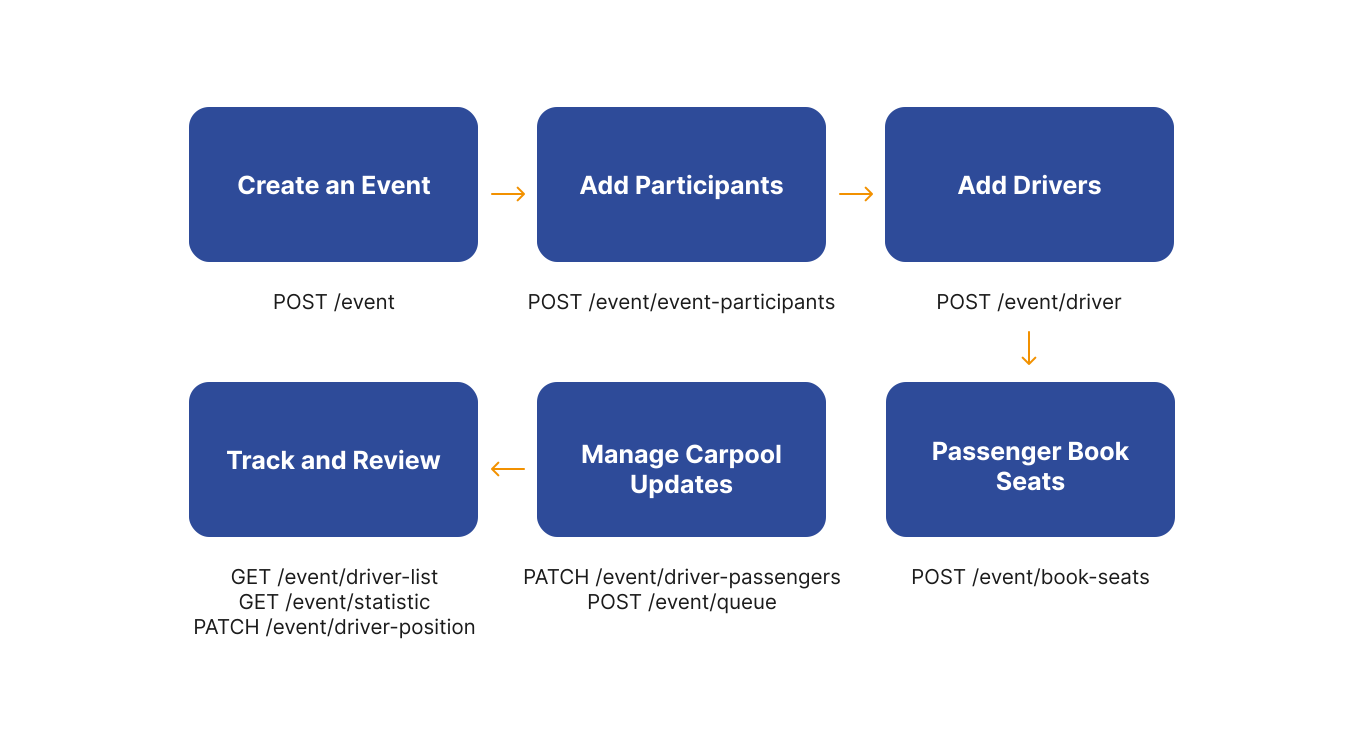
1. Create an Event
Before you can manage carpools, you need an event. Create an event using the POST /event endpoint. An event may include details such as date, time, location, and the club ID it’s associated with. You can also decide if you want to send out immediate notifications to potential attendees.
- Request
- Response
curl --request POST \
  --url https://api.coolrool.com/event \
  --header 'Content-Type: application/json' \
  --header 'Authorization: Bearer <ADMIN_TOKEN>' \
  --data '{
    "name": "Friendly Match vs. Rivals",
    "date": "2025-05-15T14:00:00.000Z",
    "clubId": 1001,
    "sendEmail": true,
    "sendPush": true,
    "points": [
      {
        "address": "123 Stadium Road, Paris",
        "latitude": 48.8566,
        "longitude": 2.3522,
        "type": "depart",
        "tripType": "Going",
        "arriveTime": "2025-05-15T13:30:00.000Z"
      }
    ],
    "participants": [42, 56, 78]
  }'
{
  "id": "abc-123-event",
  "name": "Friendly Match vs. Rivals",
  "date": "2025-05-15T14:00:00.000Z",
  "clubId": 1001,
  "createdAt": "2025-04-01T09:00:00.000Z",
  ...
}
Once created, any user associated with this club can potentially see and participate in the event, depending on role or invitation settings.
2. Add Participants
If you didn’t specify participants in the create step, or want to add more people later, you can use specialized endpoints to attach members to an event using the POST /event/event-participants endpoint.
- Request
- Response
curl --request POST \
  --url https://api.coolrool.com/event/event-participants \
  --header 'Authorization: Bearer <ADMIN_TOKEN>' \
  --header 'Content-Type: application/json' \
  --data '{
    "eventId": "abc-123-event",
    "participants": [101, 102, 103],
    "sendEmail": true,
    "sendPush": false
  }'
{
  "message": "Participants added",
  "addedCount": 3
}
Alternatively, some setups allow you to specify participants during event creation, so this step may be optional depending on your workflow.
3. Add Drivers to the Event
Once the event is set, you need drivers to transport participants. COOLROOL treats each driver as a separate car entity linked to the event, indicating available seats and travel direction (Going, Returning, or both).
{
  "eventId": "abc-123-event"
}
Using this call, COOLROOL will convert the authenticated user (or specified user) into a driver object for that event—assuming the user has valid driver data (like a car brand and seat count) on their profile.
Some clubs let each user volunteer to drive from within the mobile app. That triggers the same endpoint, but from the user side, not an admin. The concept is the same: a driver is registered under an event with an associated car capacity.
4. Passengers Book Seats
Participants who aren’t driving can select a driver’s car and book seats. COOLROOL handles seat availability so that no more passengers can be assigned than the car’s capacity.
- Request
- Response
[
  {
    "eventCarId": "driver-car-uuid-1",
    "eventParticipantId": "participant-uuid-101",
    "tripType": "Going"
  },
  {
    "eventCarId": "driver-car-uuid-1",
    "eventParticipantId": "participant-uuid-102",
    "tripType": "Going"
  }
]
[
  {
    "id": "seatbooking-001",
    "tripType": "Going",
    "eventCar": "driver-car-uuid-1",
    "eventParticipant": "participant-uuid-101"
  },
  {
    "id": "seatbooking-002",
    "tripType": "Going",
    "eventCar": "driver-car-uuid-1",
    "eventParticipant": "participant-uuid-102"
  }
]
At this point, those participants are marked as riding with the specified driver for the “Going” trip.
5. Manage Carpool Updates
Plans change: seats might be reduced, new drivers join, or participants may switch cars. COOLROOL provides endpoints to handle updates—like reassigning seats or placing participants on a waiting list when cars are full.
Updating Seat Assignments
You can update the number of seats available or shuffle who sits in each trip using the PATCH /event/driver-passengers endpoint. The request body is structured as follows:
{
  "eventCarId": "driver-car-uuid-1",
  "isDepart": true,
  "isReturn": true,
  "departSeats": 2,
  "returnSeats": 2,
  "departPassengerIds": ["participant-uuid-101"],
  "returnPassengerIds": ["participant-uuid-102"]
}
This can change how many seats are available or shuffle who sits in each trip.
Waiting List (Queue)
If no seats are available, participants can queue up until a driver adds more seats or new drivers volunteer. You can use the POST /event/queue endpoint to add a participant to the waiting list. The request body is structured as follows:
{
  "eventId": "abc-123-event",
  "tripType": "Going",
  "eventParticipant": "participant-uuid-999"
}
If no seats are available, participants can queue up until a driver adds more seats or new drivers volunteer.
6. Track & Review
After the event is set with drivers and seat bookings, you can gather driver lists, statistics, or even real-time driver location. This helps coaches or admins see who’s traveling, if seats are missing, or if a participant never booked a seat.
GET /event/driver-list: List all drivers for an event, their seats, and assigned passengers.GET /event/statistic: Summaries like how many seats are open or how many participants have confirmed.PATCH /event/driver-position: Update a driver’s real-time location (optional advanced feature).
These calls enable continuous monitoring of rides until everyone arrives safely.